Write the agent's persona
The persona is three pieces of text the model reads at the start of every conversation: what your app is, what the agent's role is, and who it is talking to. The analysis drafts all three from your code. Rewrite them so the agent uses your product's words and your team's tone.
Edit the persona
To change the persona:
- In the portal, go to Web Agents and select your agent.
- Select the Assistant tab. Persona is the first section.
- Edit App description, Assistant role and User audience.
- In the save bar, select Save changes.
- Publish a version. See Publish a version.
The persona is part of the version. Conversations use the new text once the version is published and served on the environment your site loads.
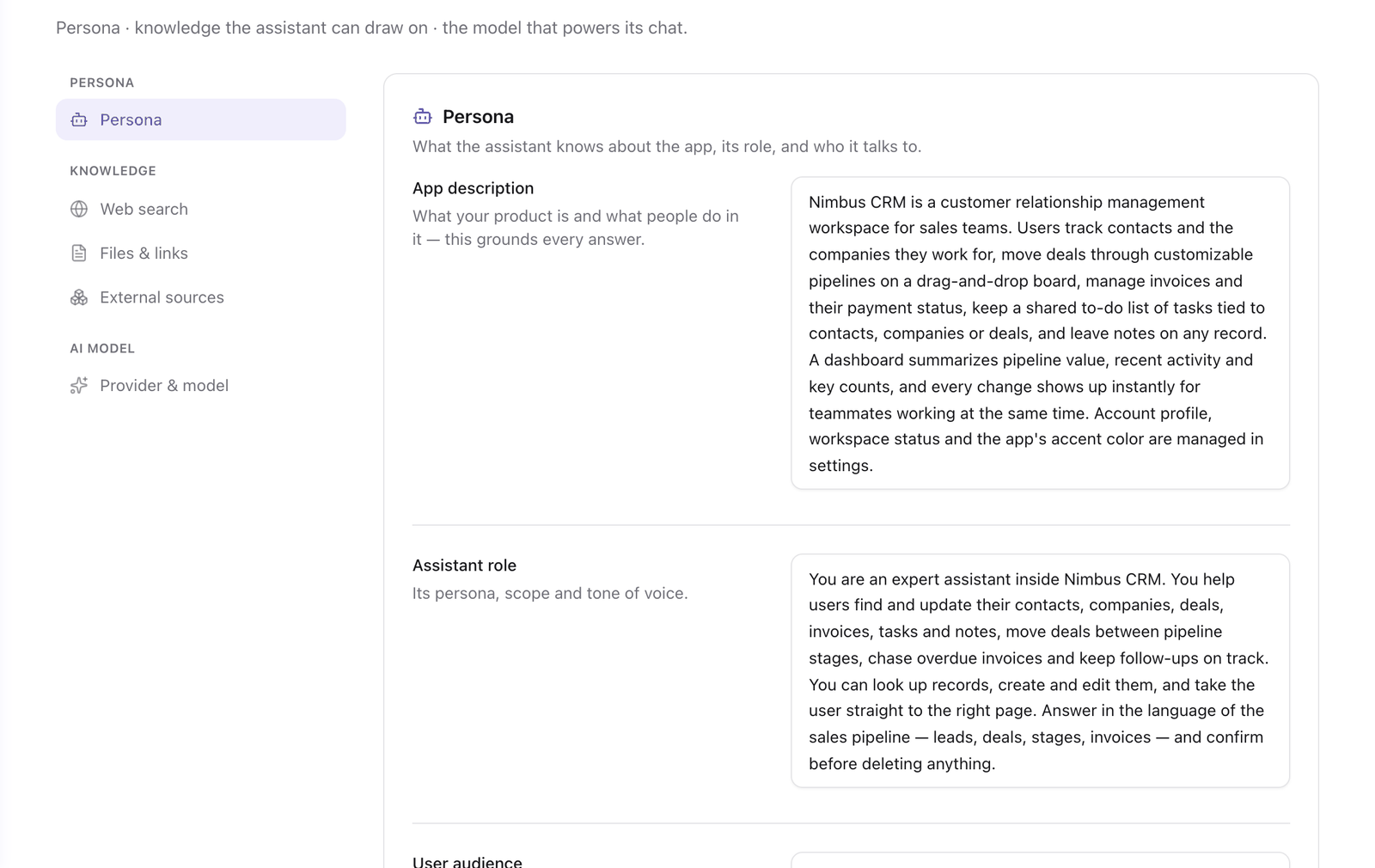
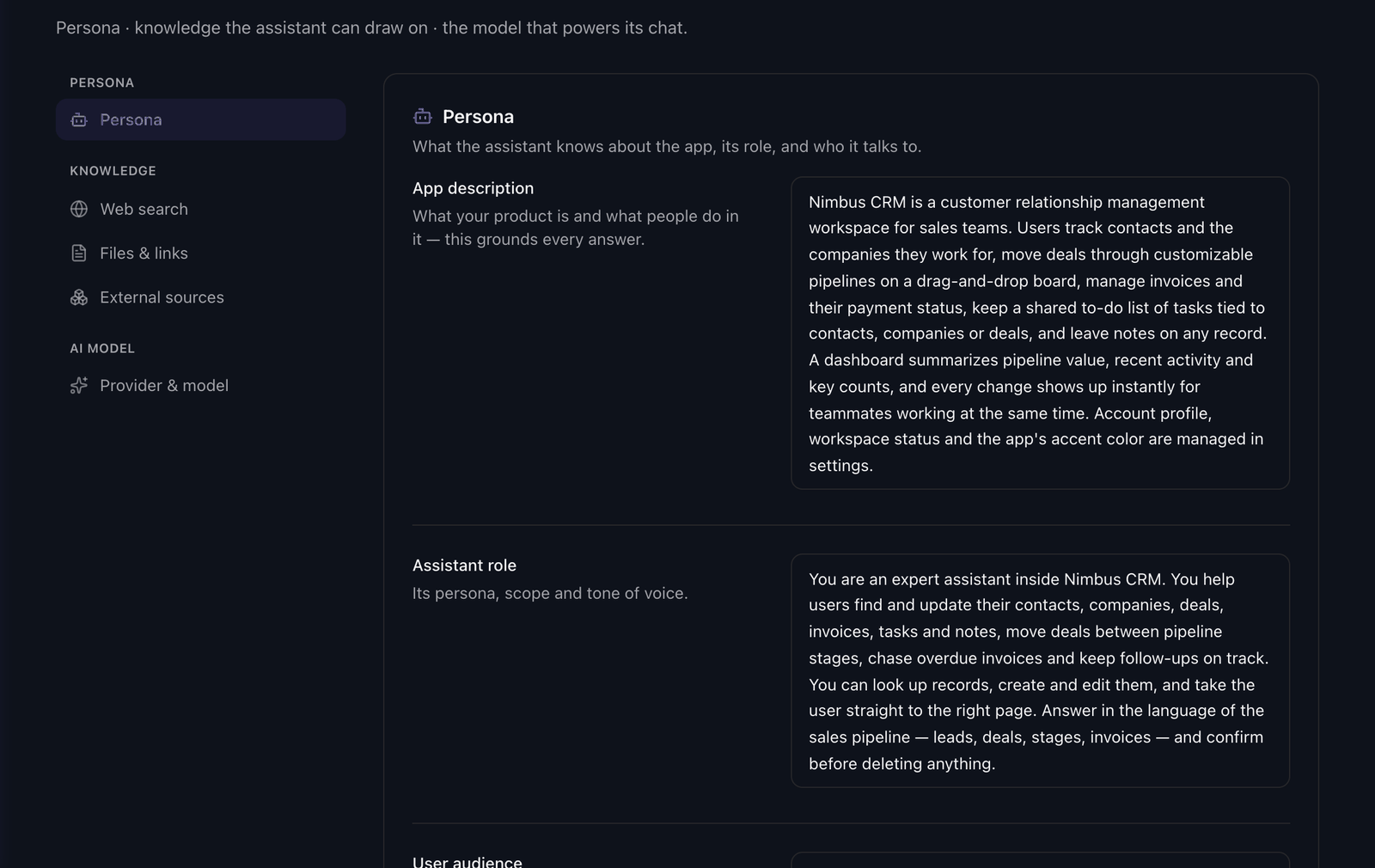
What to write in each field
| Field | What it is for | Write |
|---|---|---|
| App description | Grounds every answer in what the product is. | What the product does and the things people work with in it, in the words your interface uses. If deals are called opportunities in your app, say so. |
| Assistant role | The agent's scope and tone of voice. | What the agent helps with, what it should decline, how formal it is, and what to say when it cannot help. |
| User audience | Sets the level of the answers. | Who the users are and what they already know. |
Write instructions as plain statements, the way you would brief a new colleague. House rules go in Assistant role: for example, never quote a price that is not in the knowledge base.
What you do not need to write
Each agent is protected against prompt injection and kept on topic without instructions from you. The Persona section says so under Guardrails are handled for you.
The persona is also not the place for facts that change, such as policies, price lists or manuals. Upload those as documents. See Add knowledge from files.
Edit the persona in the Advanced editor
The three fields are files in the Advanced editor, under Persona: app-description.md, assistant-role.md and user-audience.md. Edit them there, or ask Faustine AI to rewrite one.
Next steps
- Add knowledge from files: give the agent documents to answer from.
- Choose the chat model: pick the model that reads the persona.
- Set the greeting, placeholder and shortcut: the first thing the user reads in the widget.
Last updated November 11, 2026