Edit screens and first steps
The app map is what the Guide knows about your app. Edit it when the map run described a screen wrong, when a new user should start somewhere else, or when the Guide should leave a screen alone.
Every edit on this page is a change to the draft. Your users get it when you publish a version and deploy it. A later map run keeps your text.
Before you begin
- The agent has a map. If Start here shows Map the app, run it first. See Teach your agent the app.
Edit what the Guide says to someone new
To change the app's purpose and the first steps:
- In the portal, go to Web Agents and select your agent.
- Select the Guide tab, then Start here.
- Select Edit.
- Change the text under What the app is for.
- Under First steps, change a step's title or its line. Use the arrows on a step to move it up or down, and the X to remove it.
- Select Save.
You can reorder and remove first steps, not add one. On a step marked Inferred, the map run deduced where the step goes. Your code does not enforce that order.
Edit a screen
To change what a screen is for and what the Guide says there:
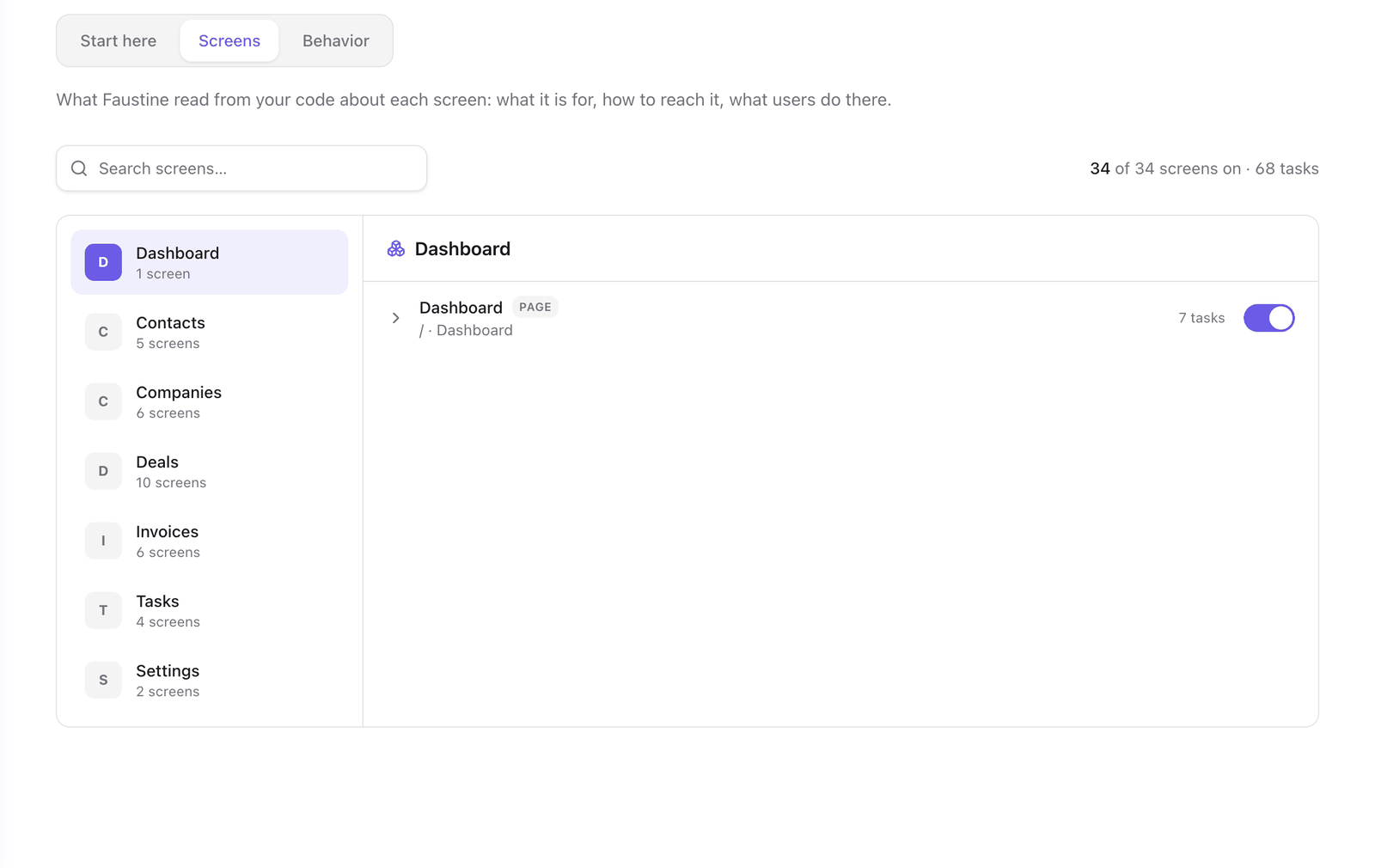
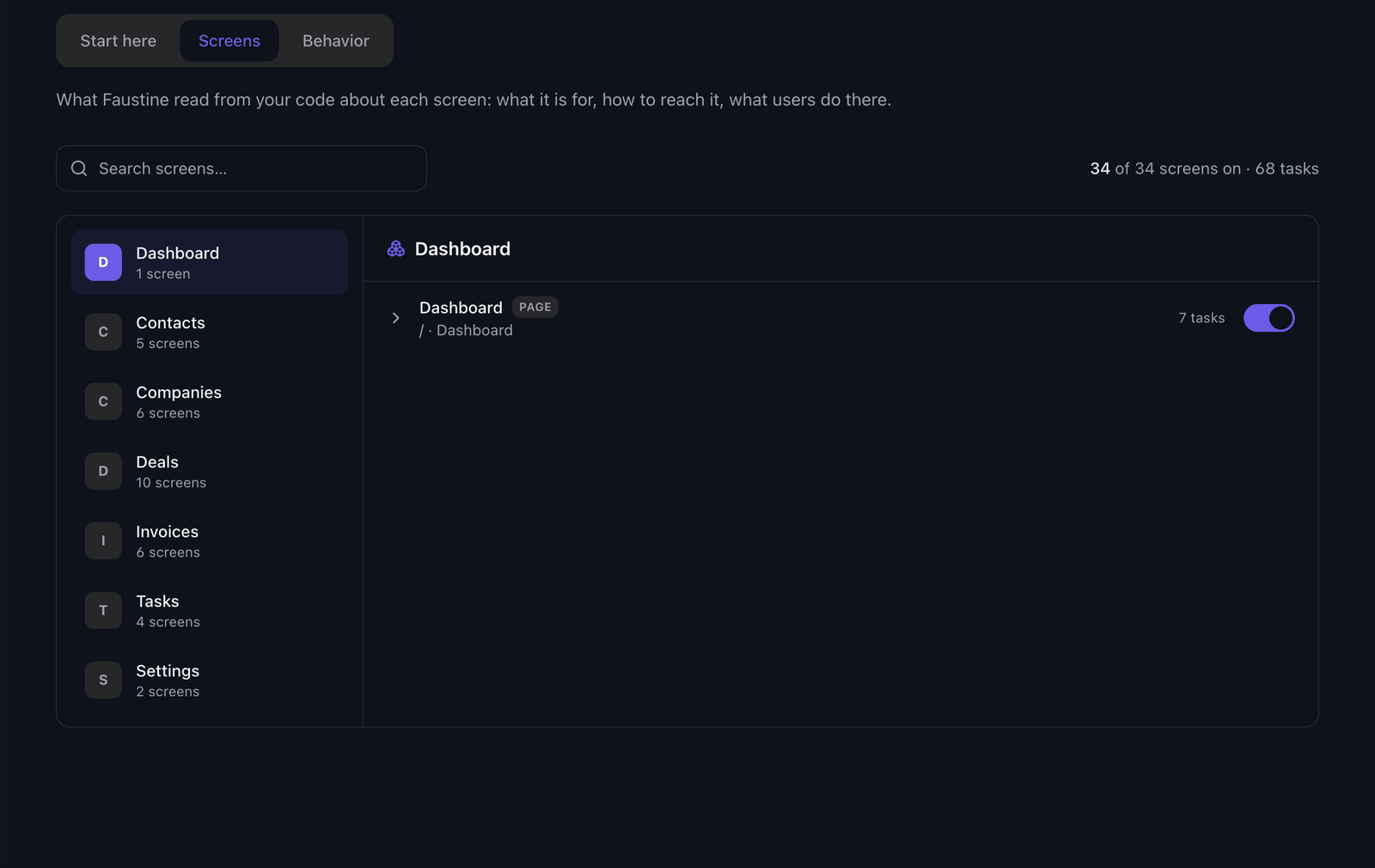
- In the Guide tab, select Screens.
- Select an area, or enter a name in Search screens….
- Select the screen's row to open it.
- Next to What it is for, select Edit, change the text and select Save.
- Under What users do here, select Edit on a task. Write one step per line, in the words the Guide says while it points, and select Save.
The row shows edited after you change it.
Turn a screen off
In Screens, turn off the switch on the screen's row. The Guide stops using that screen. The count above the list shows how many screens are on.
Read stale screens again
When an update could not read a screen again, the row shows stale and the Guide keeps what it knew before. To read it again, open the row and select Refresh. The notice above the list has a Refresh button that reads every stale screen.
A refresh is a map run for those screens only. It runs on your model provider and does not touch the rest of the map.
Map the whole app again
- In Start here, select Map the app again.
- In the Map the app again? dialog, select Map again.
The run reads the whole repository again and is billed like an analysis. It keeps your edits to purposes, first steps and task steps.
Next steps
- Publish a version: send the edited map to your users.
- Guide behavior: choose what the Guide reads from the page and whether it points.
- The Guide: the parts of the map and how the agent uses them.
Last updated November 13, 2026