Actions
An action is one thing a Web Agent can do in your app, such as creating a contact or listing open deals. The analysis writes the actions from your code, and you review them in the agent's Actions tab.
How it works
Each action has three parts.
| Part | What it is | Who reads it |
|---|---|---|
| Description | A JSDoc comment that says what the action does and what each parameter means. | The model, to decide when to run the action and with which values. |
| Parameters | The inputs the action takes, with their types. | The model, to know what to ask the user for. |
| Code | JavaScript that makes the request your app would make. | The user's browser. |
The code runs in the user's browser, inside your page. It calls your app's API with the session of the user who is signed in, through the code described in Authentication. The agent can do what that user can do in the app and nothing else. When no user is signed in, the requests fail the way they would for any signed-out visitor.
Actions are grouped into modules, one for each feature area the analysis found. The model refers to an action by its module and its name, such as contacts.createContact.
The Actions tab
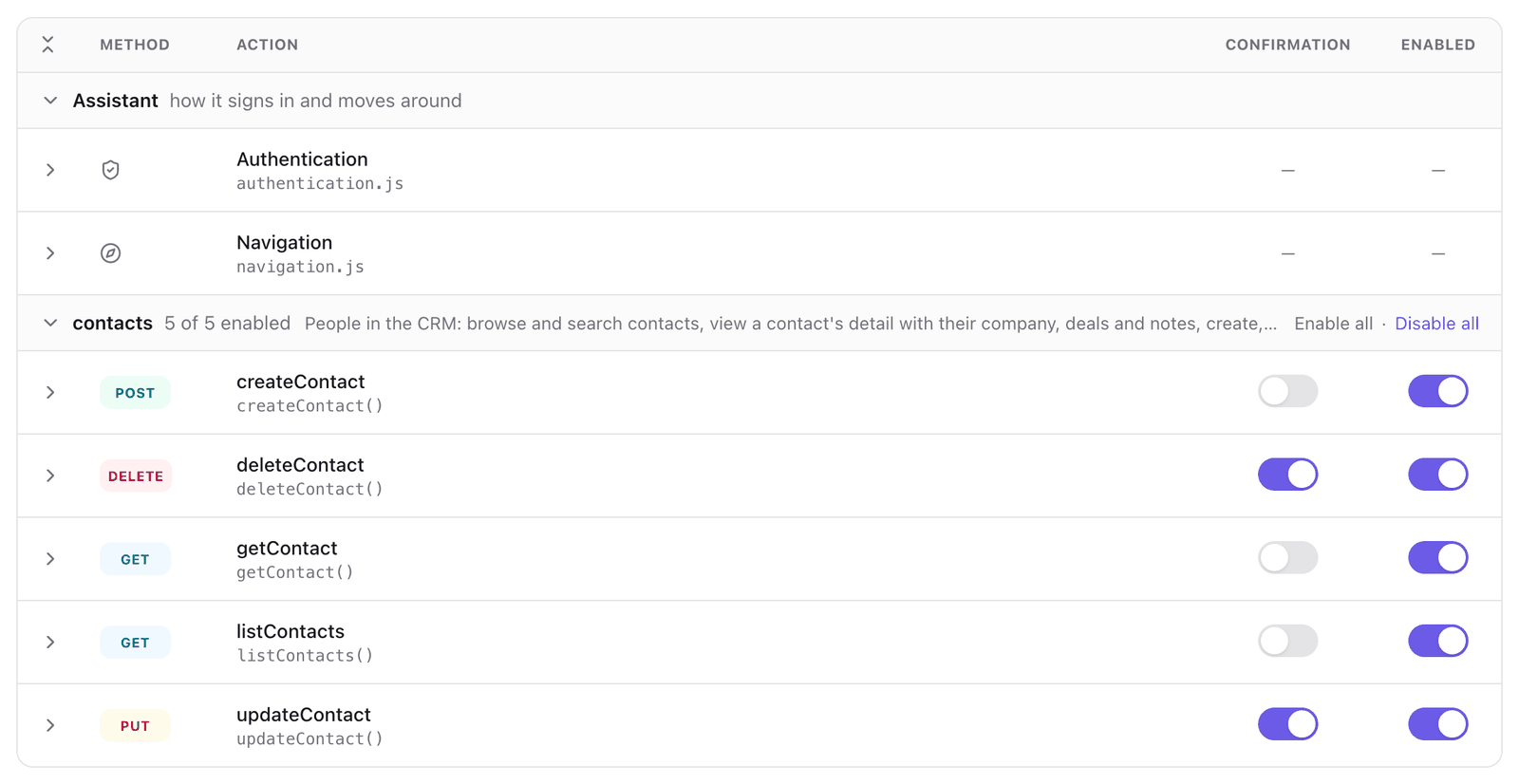
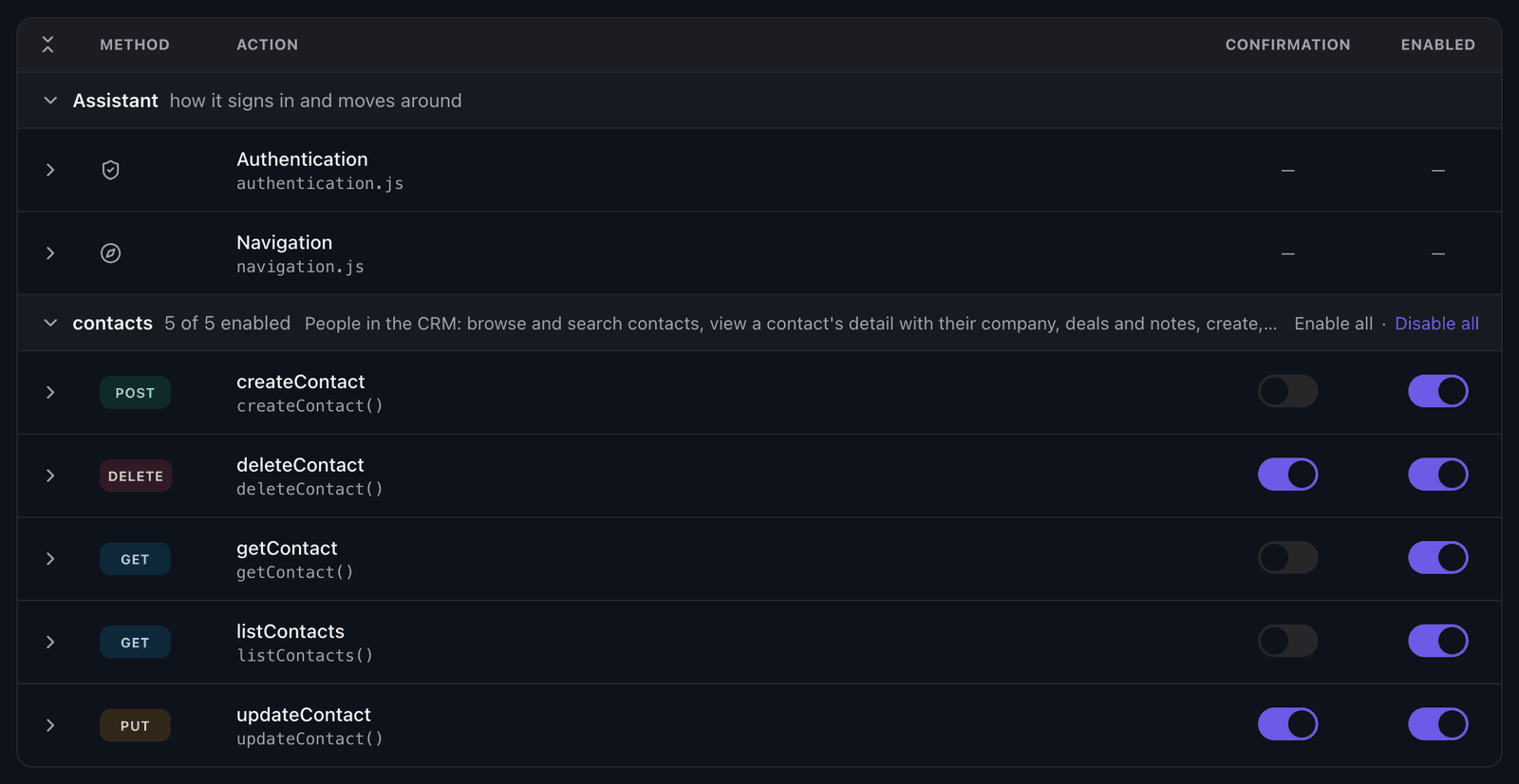
The tab is a table with one group for each module and one row for each action.
| Column | What it shows |
|---|---|
| Method | The HTTP method of the request the action makes. |
| Action | The action's display name, and its function name under it. |
| Confirmation | Whether the agent asks the user before it runs the action. |
| Enabled | Whether the agent can run the action. |
The first group, Assistant, holds Authentication and Navigation. They are not actions the user asks for. Every action depends on them.
Select a row to open the action: its description, its parameters, its JSDoc and its code, with the same two switches. Search actions… filters the table by name.
What you can do with an action
- Turn it off, for one action or for a whole module. An action that is off does not exist for the agent.
- Run it against a page of your app before users do. For both, see Turn an action on or off and test it.
- Have the agent ask first. See Require confirmation for an action.
- Change its description or its code. See Edit an action, or ask for the change in the Advanced editor.
What the user sees
When an action returns records, the widget shows them as cards and tables in the reply. To choose which components the agent can use, see Generative UI.
When an action is set to ask for confirmation, the widget shows a confirmation card with what is about to happen and waits for the user to confirm or cancel. See Require confirmation for an action.
Changes and versions
Changes in the Actions tab are saved to the draft. The save bar counts them and reads Nothing applies until you save. After you select Save changes, the agent's header shows unpublished changes, and your site gets them when you publish a version. See Publish a version.
A re-analysis writes the actions again and overwrites edits in the draft. An update keeps them.
Variables
Actions read configuration, such as the base URL of your API, from variables. A variable has a default from the analysis and a value for each environment. See Set variables for each environment.
Next steps
- Turn an action on or off and test it: decide what the agent can do and try it.
- Require confirmation for an action: make the agent ask before it changes data.
- Edit an action: fix a description or the code.
- Authentication: how actions run as the signed-in user.
- Add actions to a Guide-only agent: give an agent that only guides the ability to act.
Last updated November 13, 2026