Installation
Installation puts a Web Agent's widget on the pages of your app. You add a script tag or the @faustine-ai/web-agent package once. The widget and the agent's actions load from Faustine each time a page loads.
How it works
Your page requests a script from webagent.faustine.ai with the agent's ID. The response contains the version that the environment serves, the variable values of that environment, and the instruction to load the widget. None of it is bundled into your app.
A version you deploy or roll back in the portal therefore reaches your users on their next page load. Your app does not need a new build.
Install methods
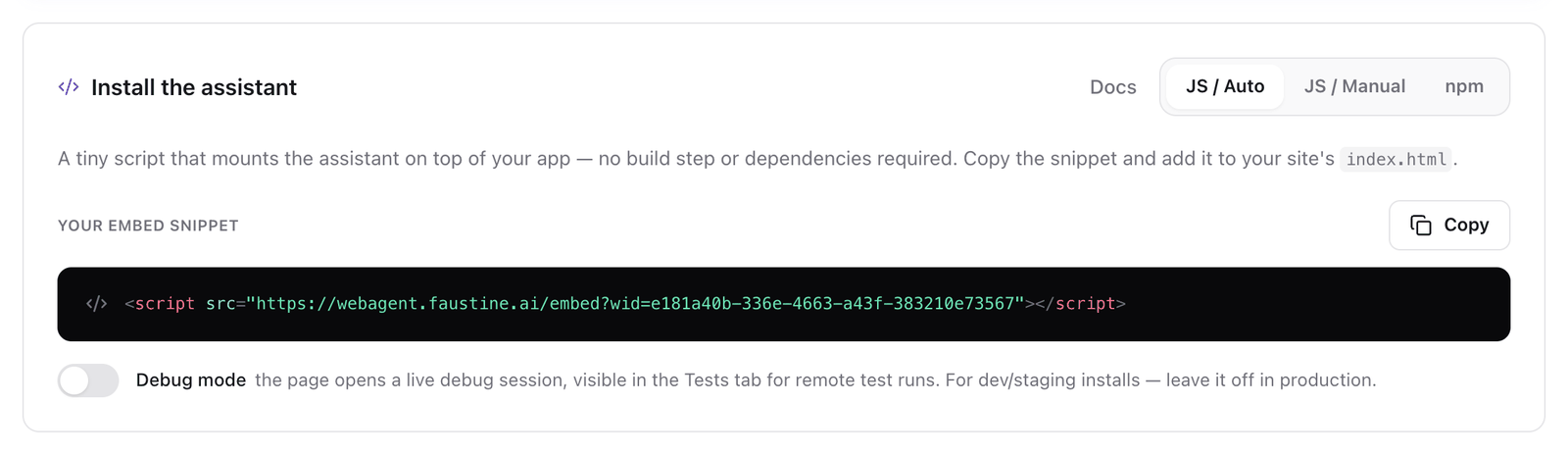
The Install the assistant card in the agent's Overview tab has a tab for each method, with your agent ID filled in.
| Method | Choose it when | What you add |
|---|---|---|
| JS / Auto | The site has no build step and the widget can start as soon as the page loads. | One script tag. |
| JS / Manual | The site has no build step and your code decides when the widget starts, or you identify users. | A script tag for the loader and a call to Faustine.init. |
| npm | The app has a bundler. This is the recommended method for React, Vue, Angular and Svelte apps, because the calls are typed. | The @faustine-ai/web-agent package and a call to Faustine.init. |
For the first two, see Install with a script tag. For the third, see Install from npm.
A Next.js app uses a component from @faustine-ai/next and signs the user's identity on the server. See Install in Next.js.
The agent ID
Every method needs the agent's ID. It is the wid value in the JS / Auto snippet and the agentId value in the other two. The ID is not a secret. To keep other sites from using it, see Restrict the domains that can load the agent.
The environment a page loads
An install that names no environment loads Production, or the agent's first environment while it has no Production. To load another one, name it in the install: &env=Staging on the script URL, or env: 'Staging' in Faustine.init. The name must match the environment's name in the Deployments dialog exactly.
An install that names an environment gets that environment only. If the name does not match an environment that serves a version, the agent does not load and the script request answers 404 with the reason.
What the page needs
- A version served on the environment. Publishing the first version serves it on the release target, which is the first environment you selected in the wizard. See Versions, environments and deployments.
- A domain the environment allows, if the environment has a list of allowed domains.
Debug mode
The Debug mode switch on the install card adds a flag to the snippet. A page installed with it opens a debug session, which is how tests run. See Open a debug session.
Troubleshooting
| Symptom | Cause | Fix |
|---|---|---|
No launcher, and the request to webagent.faustine.ai/embed returns 404 with nothing is served for assistant |
No environment of the agent serves a version. | Publish a version. |
No launcher, and the same request returns 403 |
The page's domain is not in the environment's allowed domains. | Add the domain. See Restrict the domains that can load the agent. |
The same request returns 400 with missing ?wid=<assistantId> |
The script URL has no wid parameter. |
Copy the snippet again from the install card. |
| The page shows an older version than the portal | The page loads an environment that still serves that version. | Deploy the version to that environment. |
Next steps
- Install with a script tag: add the widget without a build step.
- Install from npm: add the loader to an app with a bundler.
- Install in Next.js: mount the agent in the root layout.
- JavaScript API: every option and method of the loader.
Last updated November 13, 2026