Faustine Chat
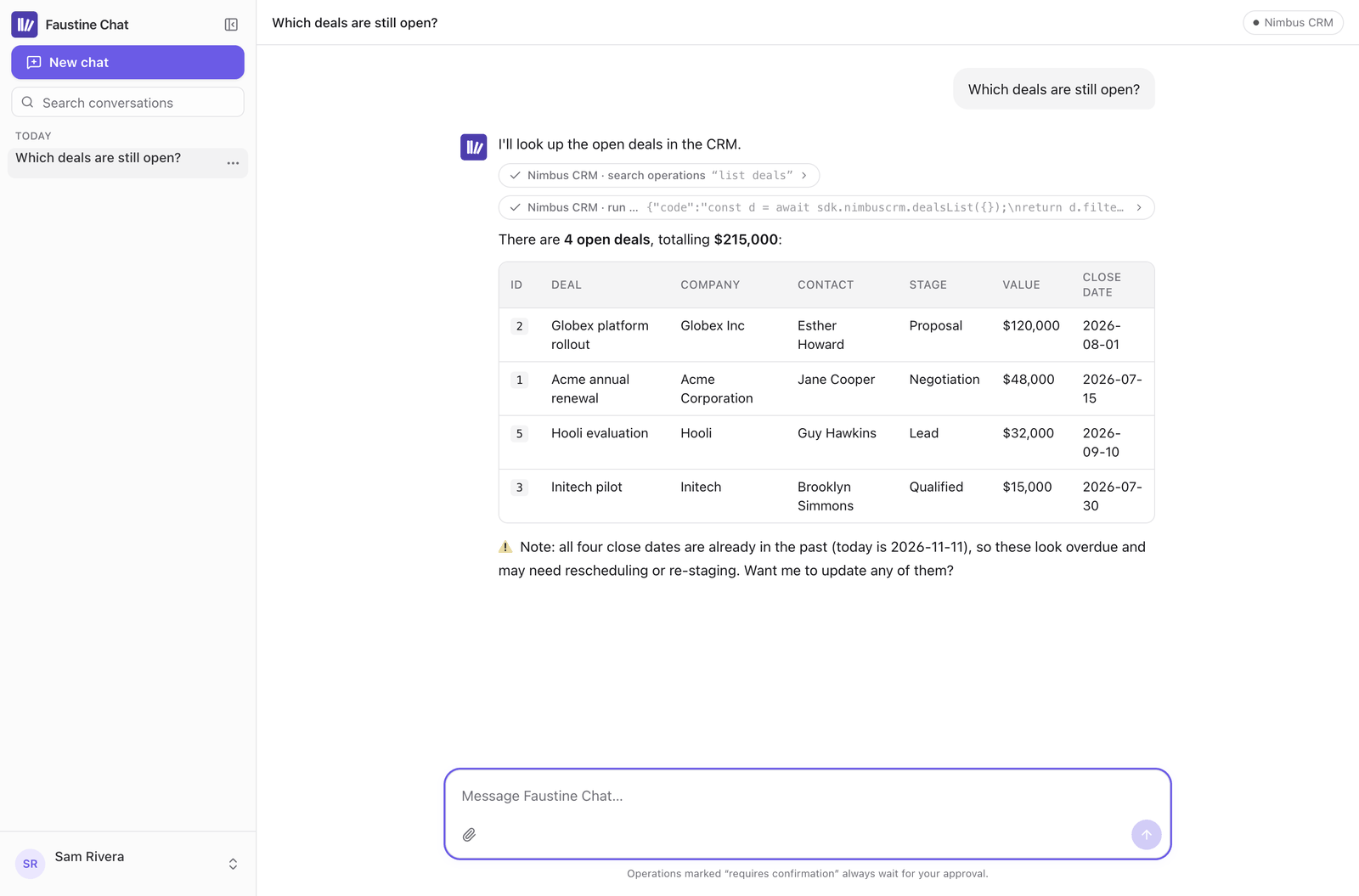
Faustine Chat is a chat app for the people in your company that is already connected to your gateways. Each person signs in with a username and a password at https://chat.faustine.ai/<workspace>, where <workspace> is your workspace's slug, and asks in plain language for what your APIs can do. You set it up and manage it in the portal, under Faustine Chat.
How it works
You choose which gateways the chat serves and create a chat user for each person. A chat user reaches every gateway you turned on, and every operation in them, unless you narrow it.
When a user sends a message, the assistant answers with the model of the workspace's model provider and calls your operations through the gateway with that user's session. The gateway applies the same permissions, connections, limits and confirmations as it does for an API key, and records each call in its logs under the chat user's name.
A conversation belongs to the user who started it. Users can attach up to 5 files to a message.
Gateways and serving mode
The chat serves the published gateways you turn on in Access > Gateways, each in one environment. Turning a gateway off removes it for every user immediately.
How your gateways are served applies to all of them. With Code, the assistant searches your operations and writes a short script against them. With One tool per operation, each operation is a separate tool and the assistant calls them one at a time. Code is the default and the recommended option, because it needs fewer round trips and works with any number of operations. See Give chat access to specific gateways and Serving modes: Code and Tools.
Chat users
A chat user is a username and a password. Chat users exist only in Faustine Chat. They are separate from the members of your workspace, who sign in to the portal, and from gateway users, who belong to one gateway. See Add and manage chat users.
Confirmation
An operation marked as requiring confirmation does not run until the user confirms it. The chat shows a card with each waiting operation and its arguments. The user selects Confirm selected to run the ones that are checked, or Reject all. With One tool per operation, a single waiting operation gets a card with Confirm and Reject.
The gateway enforces this, not the assistant. A call that the user did not confirm is refused. See Confirmation.
What the assistant knows
Besides the gateways, the assistant draws on four things you control in the Assistant group of the configuration.
| Setting | What it is |
|---|---|
| Your users | A short description of who uses the chat and what they do. |
| Custom instructions | Your rules for the assistant: language, tone, how to use your gateways. |
| Knowledge | Documents the assistant searches before it answers. |
| Skills | One text per gateway that describes the system, its operations and its connections. Faustine writes it and you can edit it. |
Web search is a switch in the same group. It uses Anthropic's web search tool, so it is available when the chat runs on an Anthropic model through Anthropic or Vercel AI Gateway.
See Write the prompt and custom instructions and Add knowledge and skills to Faustine Chat.
Turn the chat off
Settings has one switch, Faustine Chat. When you turn it off, open conversations stop and sign-in is refused until you turn it on again. Users see "Faustine Chat isn't available for this account yet". Nothing is deleted.
Limits
| Limit | Value |
|---|---|
| Password length | At least 12 characters |
| Failed sign-ins before a user is locked | 5. The lock lasts 15 minutes. |
| Session | Ends after 30 days without use |
| Files attached to one message | 5, up to 10 MB each. Images, PDF, text, Markdown or CSV. |
| Knowledge document | 25 MB. PDF, DOCX, TXT or Markdown. |
| Your users | 2,000 characters |
| Custom instructions | 8,000 characters |
| Skill | 20,000 characters |
| Web searches in one reply | 12 |
Troubleshooting
| Symptom | Cause | Fix |
|---|---|---|
| "Faustine Chat isn't available for this account yet" | The setup was never finished, or the chat is turned off. | Finish the setup, or turn on Faustine Chat in Settings. |
| "This user is locked after too many failed attempts. Try again in 15 minutes." | 5 failed sign-ins in a row. | Wait, or select Unlock on the user's row in Access > Users. |
| "This user is disabled. Ask your workspace administrator." | The user was disabled in the portal. | In the user's menu, select Enable. |
| The new conversation screen says "No gateway is enabled for you yet" | No gateway is turned on for the chat, or the user's permissions exclude all of them. | Turn on a gateway in Access > Gateways, or change the user's Permissions. |
Next steps
- Set up Faustine Chat for your team: go from a published gateway to a teammate's first answer.
- Add and manage chat users: create users, reset passwords and end sessions.
- Give chat access to specific gateways: choose the gateways, the environment and each user's permissions.
- Add knowledge and skills to Faustine Chat: upload documents and edit the skill of each gateway.
- Read Faustine Chat logs and usage: see what users asked and what it cost.
Last updated November 13, 2026