Set up Faustine Chat for your team
At the end of this tutorial a teammate signs in to Faustine Chat, asks a question about Nimbus CRM and gets an answer that came from its API. They then ask for a change, and the chat waits for their confirmation before it runs.
In this tutorial, you:
- Choose the gateways
- Create the first chat user
- Describe your users and write instructions
- Enable Faustine Chat
- Sign in and ask
Before you begin
- A published gateway. If you do not have one, follow Publish your API as an MCP server first. This tutorial uses a gateway that serves the Nimbus CRM API.
- A model provider connected to your workspace. The chat runs on it. See Model providers.
- At least one operation of the gateway marked as requiring confirmation, such as the one that deletes a contact. See Mark an operation as requiring confirmation.
Choose the gateways
- In the portal, go to Faustine Chat and select Setup.
- In the Gateways step, select your gateway. The list shows published gateways only.
- If the gateway has more than one environment, choose the environment the chat serves.
- Select Continue.
The Knowledge step opens. It takes documents the assistant searches before it answers. Select Skip. You can add documents later.
Create the first chat user
- In the First user step, select Add user.
- Enter a Display name. The Username is filled in from it, and you can change it. It takes lowercase letters, digits,
.,_and-. - Under Password, keep Generate. To choose the password yourself, select Type one and enter at least 12 characters.
- Select Create user. A Chat user created dialog shows the username and the password, each with a Copy button.
- Copy both, then select Done. This is the only time the password is shown. To replace a lost password, reset it later in the configuration.
- Select Continue.
The step shows the username with a check mark.
Describe your users and write instructions
Both steps are optional. What you enter becomes part of the assistant's prompt.
- In Describe your users, enter who uses the chat and what they do, in a sentence or two. For example:
Account managers at Nimbus. They look up companies and contacts and keep deals up to date. - Select Continue.
- In Custom instructions, enter the rules the assistant follows for every user, such as the language it answers in.
- Select Continue.
Enable Faustine Chat
The last step lists what you chose: the gateways, the documents, the users and both texts.
- Check the summary.
- Select Enable Faustine Chat.
The Configuration page opens with an Enabled badge and the address of the app, chat.faustine.ai/<workspace>. Faustine also installed a skill for the gateway, which you can read in Assistant > Skills.
Sign in and ask
Send your teammate the address of the app, the username and the password.
Your teammate opens the address, enters the username and the password, and selects Sign in. A new conversation opens with the name of the gateway under the greeting.
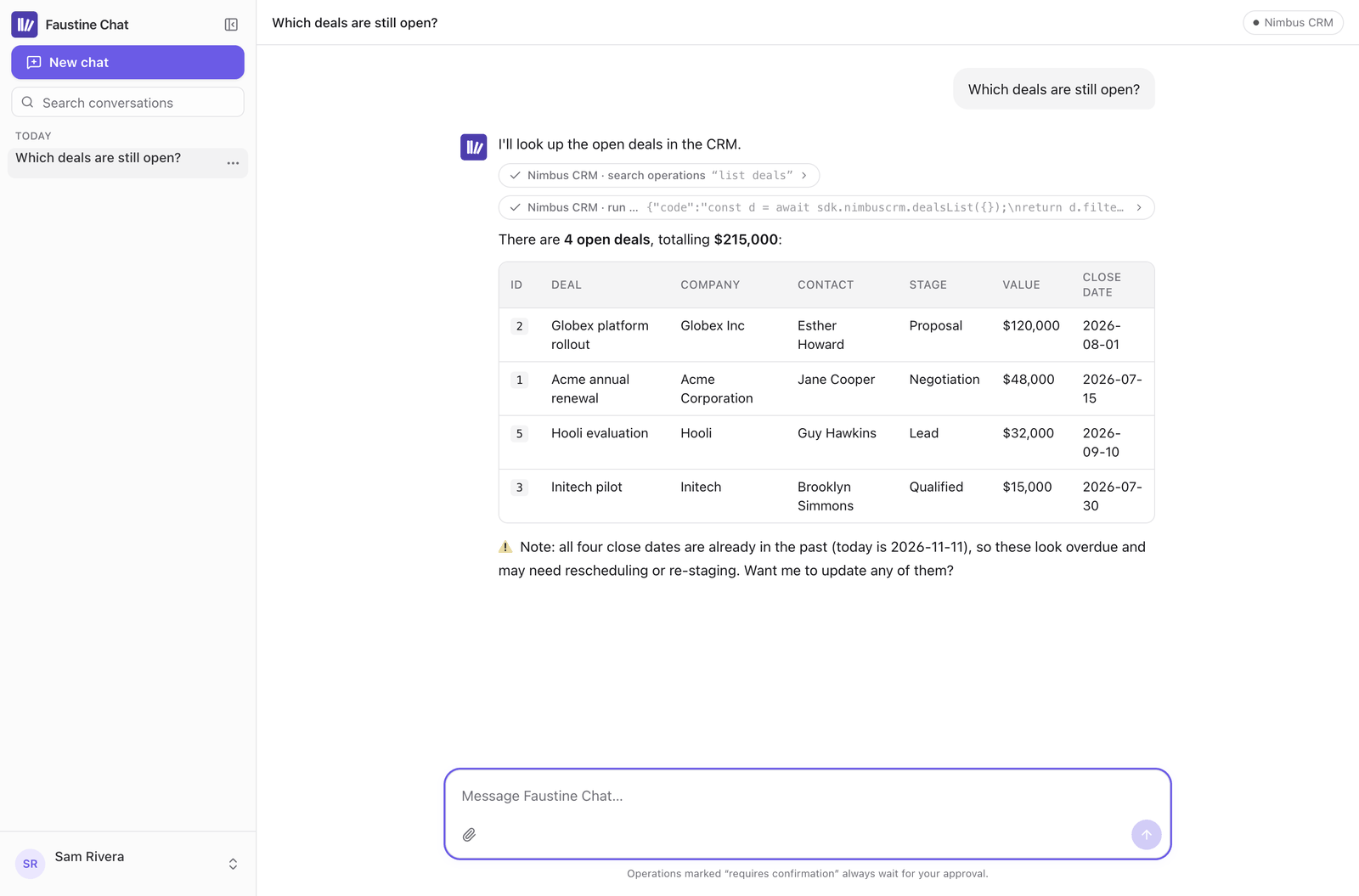
They ask for something the API can read:
Which deals are still open?The assistant calls the gateway and answers with the deals from Nimbus CRM.
They ask for the change that needs confirmation:
Delete the contact I added by mistake this morning.The assistant finds the contact and stops. A card lists the operation it wants to run and its arguments.
They check the arguments and select Confirm selected.
Checkpoint
The assistant reports that the contact was deleted, and the contact is gone from Nimbus CRM. If your teammate selects Reject all instead, nothing runs.
What you built
Faustine Chat is on for your workspace, with one gateway and one chat user, at https://chat.faustine.ai/<workspace>. The conversation your teammate had is in Configuration > Monitoring > Logs, and both calls are in the gateway's own logs under the chat user's name.
Next steps
- Add and manage chat users: create a user for each person on the team.
- Give chat access to specific gateways: limit a user to some gateways or some operations.
- Add knowledge and skills to Faustine Chat: upload the documents you skipped.
- Confirmation: how the gateway decides that a call needs the user's answer.
Last updated November 13, 2026