The Advanced editor
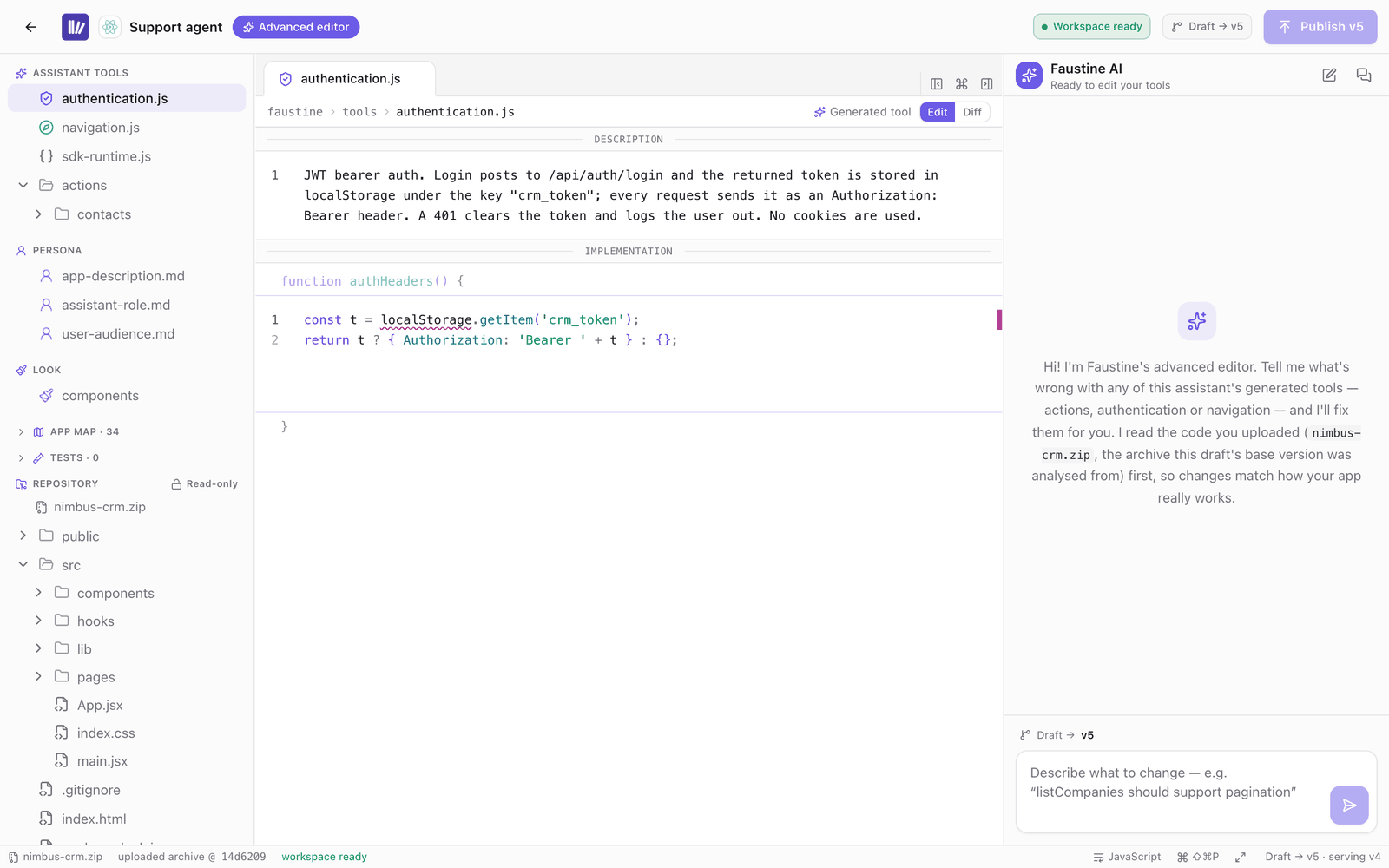
The Advanced editor is a full-screen editor for everything the analysis generated for a Web Agent. It has the agent's files, your repository and a chat with Faustine AI on one screen, and you can change a file by typing in it or by asking for the change. To open it, select your agent in Web Agents, open the Actions menu in the header and select Advanced editor.
How it works
The editor works on the same draft as the rest of the portal. An edit you make here shows in the Actions tab, and an edit you make there shows here. Nothing reaches your site until the draft is published.
Faustine AI reads your code before it changes anything. The repository is open at the commit the draft's base version was generated from, so its answers match how the app works at that version. For an agent built from a ZIP, it reads the stored archive.
The editor needs a published version to start from. For a new agent, finish the setup wizard or publish the draft first.
The screen
| Area | What is in it |
|---|---|
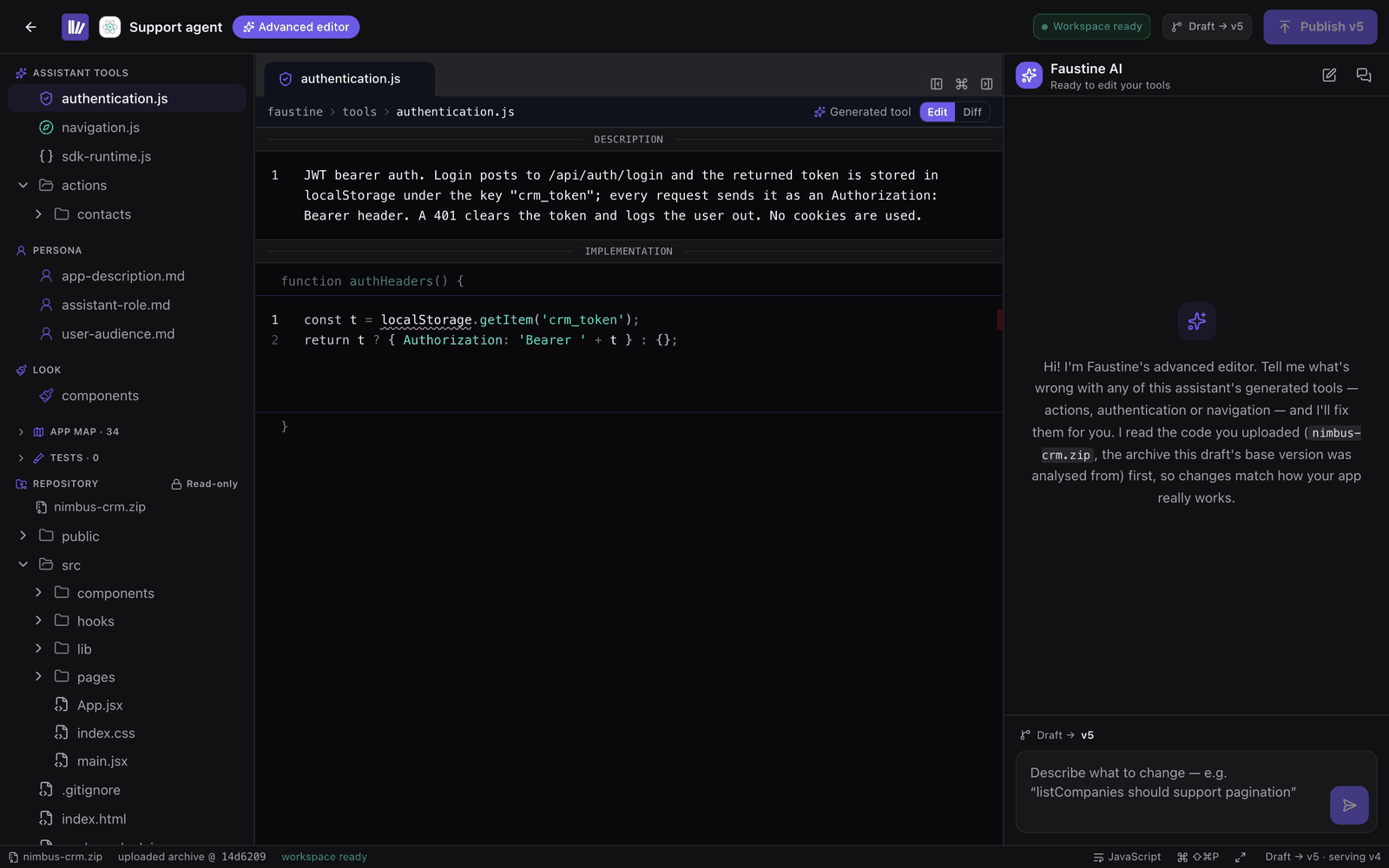
| Explorer | The agent's files, then your code. Assistant tools holds authentication.js, navigation.js, sdk-runtime.js and one file for each action under actions/<module>/. Persona holds app-description.md, assistant-role.md and user-audience.md. Look holds the look of the components. Test suites are listed next. Repository and Reference are your code and your reference material. |
| Editor | The open files, in tabs. An action shows its JSDoc and its implementation. |
| Faustine AI | The chat. Each conversation is kept, and Conversations lists them. |
Your repository, the reference material and sdk-runtime.js are read-only. A dot next to a file marks it as changed in this draft.
Ask for a change
Describe what is wrong or what you want in the chat, such as listCompanies should support pagination. Faustine AI reads the files it needs from the repository, edits the agent's files in the draft and says what it changed. The files it read are listed in the conversation, and you can open each one.
While a reply is being written, the editor's fields are locked. Stop ends the reply.
Faustine AI can also write a test suite. The suite appears in the explorer, and you run it from the agent's Tests tab. See Tests.
Edit by hand
Open a file from the explorer and type. The editor saves to the draft on its own, and the status bar shows saving… and then saved. There is no separate save step.
Each file has two modes.
| Mode | What it shows |
|---|---|
| Edit | The file, editable. |
| Diff | The draft next to the version it is based on. |
Publish from the editor
Publish followed by the next version number, such as Publish v4, publishes the draft as a new version. It is the same operation as Publish in the agent's header. See Publish a version.
When a newer version exists
If a version is published elsewhere while the editor is open, the draft in the editor is marked Stale and a banner asks you to rebase. Rebase… starts the draft again from the latest version.
Warning
Rebasing discards the edits in the editor's draft. The dialog says whether there are edits to lose before you confirm with Rebase & discard.
The editor's copy of your code
Faustine AI works on the editor's copy of your code. The status bar shows the state of that copy and calls it the workspace.
| State | Meaning |
|---|---|
| Workspace ready or Workspace live | You can send a message. |
| Workspace asleep | The copy stopped after a period without use. Your next message starts it again. |
| Code unavailable | Faustine cannot read the code. The connection to the repository was revoked or expired, or the uploaded code was deleted. |
Keyboard shortcuts
On Windows and Linux, use Ctrl in place of Cmd.
| Shortcut | Action |
|---|---|
| Cmd+P | Go to a file |
| Cmd+Shift+P | Open the command palette |
| Cmd+B | Show or hide the explorer |
| Cmd+I | Show or hide Faustine AI |
| Cmd+S | Save the pending edit now |
Troubleshooting
| Symptom | Cause | Fix |
|---|---|---|
| Publish a version first | The agent has no published version. | Publish the draft from the agent's page, then open the editor again. |
| Advanced editor is disabled in the Actions menu | The agent was built from a ZIP and the stored code was deleted. | Select Upload the code again in the same menu. |
| Code unavailable | The repository connection no longer works. | Reconnect the account under which the repository was connected. |
| Your draft is based on an older version — rebase it before applying. | A newer version was published after the draft was started. | Select Rebase…. |
| The draft failed validation | The code in the draft has an error. The message names it. | Fix the file, or ask Faustine AI to fix it, and publish again. |
Next steps
- Edit an action: the smaller editor for one action.
- Publish a version: what publishing does to your environments.
- Add reference repositories and API docs: give Faustine AI your backend to read.
Last updated November 13, 2026