Analyze your first API
At the end of this tutorial, Faustine has a list of the operations of the Nimbus CRM backend that you have reviewed, and one of them has returned real data from your running server.
Nimbus CRM is the example app of these docs: a CRM with contacts, companies, deals, tasks and invoices. Its backend is an Express app with a REST API under /api. The code is at github.com/faustine-ai/example-nimbus-crm.
In this tutorial, you:
Before you begin
- A model provider connected to your workspace. See Connect your model provider.
- A fork of
faustine-ai/example-nimbus-crmin a GitHub account that Faustine can read. See Connect GitHub. - Nimbus CRM running at a URL that Faustine can reach over the internet. A server on
localhostis not reachable. The repository'sapp/README.mdhas the command for the single-container build, which serves the API on port 4000.
Create the API
- In the portal, go to APIs and select New API.
- In API type, select REST.
- In Architecture, select One service, then Continue.
- In Language & framework, select Express.
- In Details, enter
Nimbus CRMin Name. The wizard fills Namespace withnimbuscrm. Select Continue. - In Connect your code, select GitHub, then your fork in Repository. Select
mainin Branch. - In API path, enter
app/backend. The repository also contains the front end, and the API is in this folder. - Select Continue.
- In Spec (optional), select Skip. Nimbus CRM has no OpenAPI file, so the analysis reads the routes from the code.
- In Keep the API up to date, leave Automatic selected and select Continue.
- In Review & analyze, select Create & start analysis.
The namespace is the first part of every operation key, such as nimbuscrm.contacts.list. It cannot be changed later.
Run the analysis
The portal opens the analysis page. The run clones the repository, discovers the operations and how a client authenticates, and proposes a kind and a confirmation flag for each operation. You can leave the page while it runs.
Checkpoint
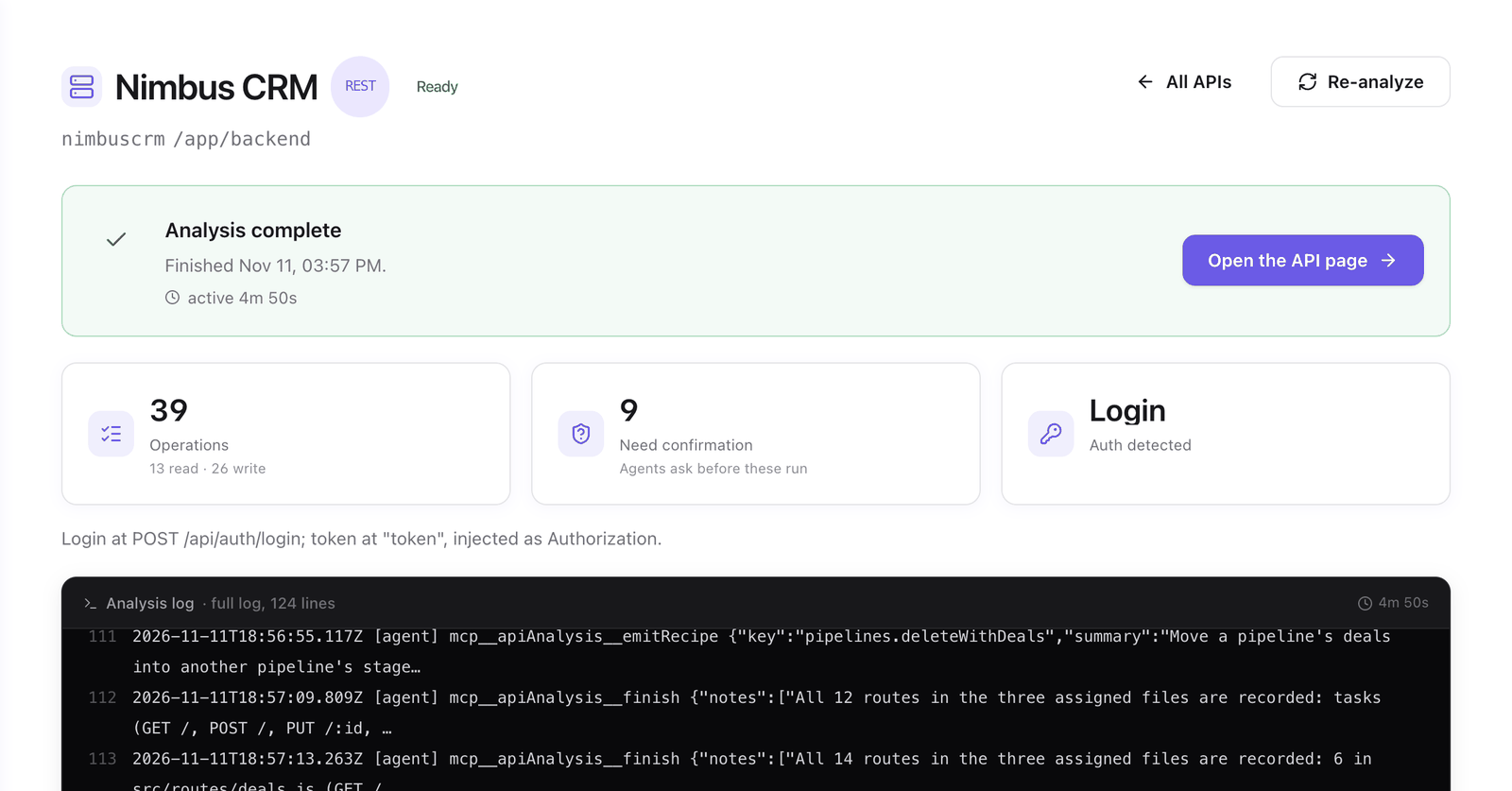
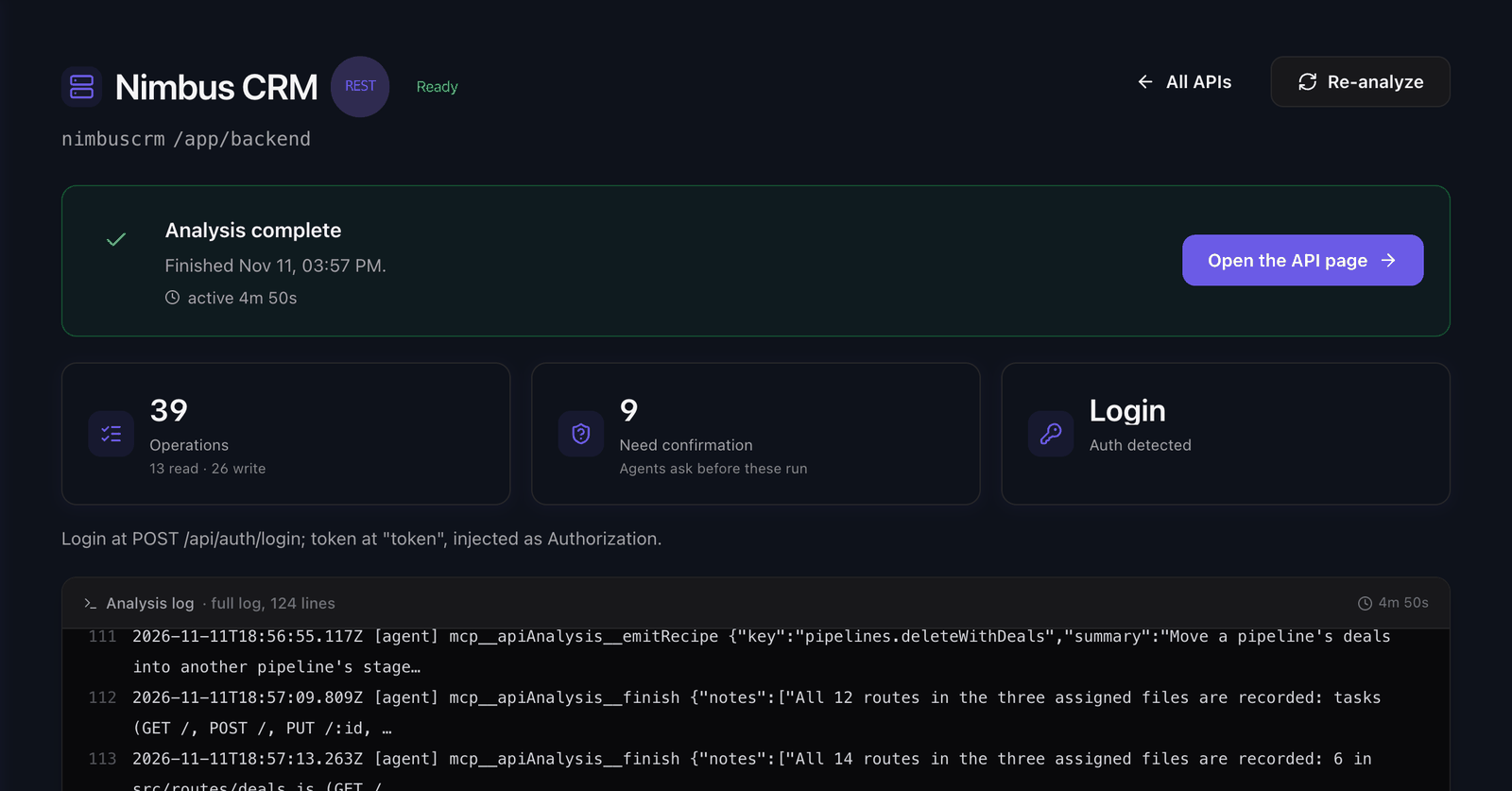
The status reads Analysis complete. Under it, the page shows the number of operations with the split between read and write, how many need confirmation, and the sign-in that was detected.
Select Open the API page.
Review the operations
The Overview tab shows Set up this API with three steps. Analyze the API is done. Add a connection and Serve it from a gateway are pending.
- Select the Operations tab. The operations are grouped by resource:
/contacts,/companies,/dealsand the others. - Select the row of the operation that lists contacts. It unfolds to show its Endpoint,
GET /api/contacts, its kind and its description. - Select Schema in the same row. The Request tab shows the input the operation accepts. Close the dialog.
- Check the Kind column of the group. Operations that create, update or delete are
write. To change a kind, select the pencil next to its badge. - Check the Requires confirmation column. Turn the switch on for each delete operation where it is off.
- If you changed anything, select Save changes.
- Under the table, open Hidden (auth endpoints). The login route is listed there. Faustine uses it to sign in and does not expose it to agents.
Go back to the Overview tab. If To review has a row about operations that require confirmation, select Looks right.
Add a connection
A connection tells Faustine where the backend runs and which credential to use. This tutorial covers the minimum. For every field, see Add a connection.
- Select the Connections tab, then New connection.
- In Endpoint, enter
Stagingin Name. In Base URL, enter the origin of your server, such ashttps://nimbus.example.com, without/api. The operation paths already start with/api. - In Credentials, enter the values the step asks for. They depend on the sign-in in the API's Authentication tab. For a sign-in through the login route, enter the seeded account from the Nimbus CRM README:
[email protected]andadmin123. - Skip Labels.
- In Test, select the operation that lists contacts in Operation, then run the test.
- In Review & create, select Create connection.
If the Credentials step reports that the sign-in is not set, open the Authentication tab first. See Authentication.
Checkpoint
The Connections tab lists Staging. In the Overview tab, Add a connection is done.
Test an operation
- Select the Operations tab.
- In the row of the operation that lists contacts, select Test.
- In Connection, select Staging.
- Replace the content of Input with
{}. The operation has no required input, and its optionalsearchandstatusfields filter the list. - Select Run test, then confirm with Run test.
Checkpoint
Result shows 200 OK and a JSON array with the seeded contacts of your Nimbus CRM instance.
Repeat the test for the other read operations you plan to serve. A test of a write operation creates or changes records on your server.
What you built
Your workspace has an API named Nimbus CRM with reviewed operations and a connection to your server. It is listed under APIs, and it updates when you push to the fork.
Next steps
- Write your first recipe: add an operation that creates a company and its first contact in one call.
- Add an API to a gateway: serve these operations to AI clients.
- Generate and run API tests: test every operation in one run.
- The analysis: what the run read and what you can re-run.
Last updated November 11, 2026