Connect clients
A client is anything that calls a gateway: a chat app, a coding agent, a workflow or your own code. The Connect tab of a gateway lists every supported client with the steps and the configuration to copy, filled in with the URLs of the environment selected in the gateway header.
Endpoints
Each environment of a gateway serves the same set of addresses. The default environment has no environment segment.
| Address | What it serves |
|---|---|
https://gateway.faustine.ai/<workspace>/<gateway>/mcp |
The MCP server. |
https://gateway.faustine.ai/<workspace>/<gateway>/api/<namespace>/<operation> |
One operation over REST. |
https://gateway.faustine.ai/<workspace>/<gateway>/openapi.json |
The OpenAPI 3.1 document. |
https://gateway.faustine.ai/<workspace>/<gateway>/skill.md |
A SKILL.md file an agent can load. |
https://gateway.faustine.ai/<workspace>/<gateway>/docs |
The API reference for people. |
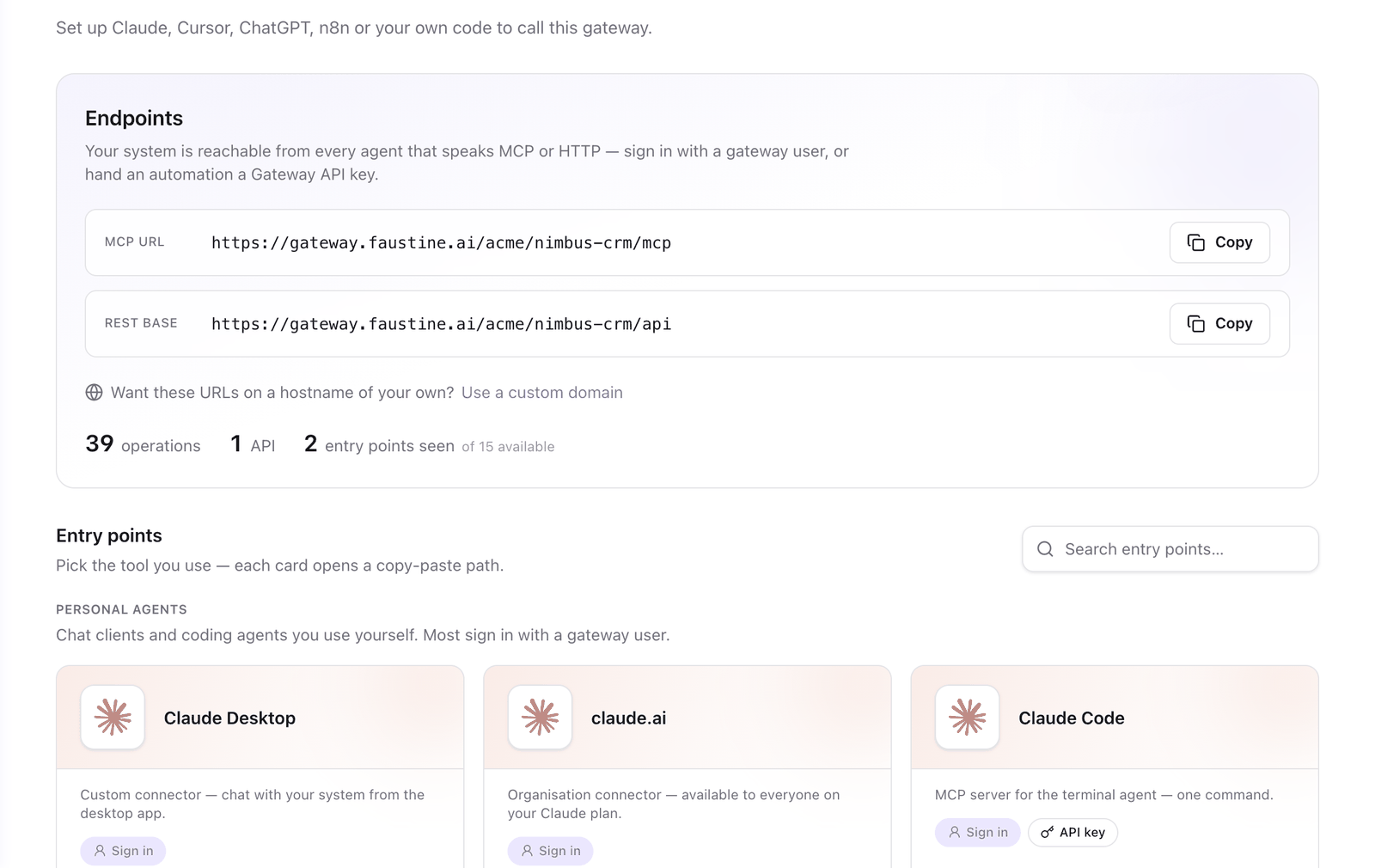
For another environment, add its slug after the gateway: https://gateway.faustine.ai/<workspace>/<gateway>/staging/mcp. The Endpoints card of the Connect tab shows the MCP URL and the REST base of the selected environment.
How a client authenticates
A client uses one of two credentials. The Connect tab shows which ones each client accepts.
Sign in with a gateway user
Clients that a person uses open the gateway's sign-in page in the browser. The person enters the username and password of a gateway user, and the gateway issues the session. The client configuration holds no secret, and the gateway registers the client on its own, so there is no client ID to create.
Each environment has its own sign-in page and its own users. You revoke a session from the user's page. See Create a gateway user.
Use an API key
Automations and code send an API key as a bearer token on every call.
Authorization: Bearer fik_…A key is shown once, when you create it. It works on the environment it was created in. Every other environment refuses it with the same answer it gives to a key that does not exist. See Create an API key.
Clients
| Client | Gateway user | API key | Guide |
|---|---|---|---|
| Claude Desktop, claude.ai | Yes | No | Connect Claude Desktop and claude.ai |
| Claude Code | Yes | Yes | Connect Claude Code |
| Cursor | Yes | Yes | Connect Cursor |
| VS Code / Copilot | Yes | Yes | Connect VS Code and GitHub Copilot |
| ChatGPT | Yes | No | Connect ChatGPT |
| n8n | No | Yes | Connect n8n |
| Messages API, Managed Agents | No | Yes | Connect the Claude Messages API and Managed Agents |
| REST / OpenAPI | No | Yes | Call a gateway over REST and OpenAPI |
| faustine CLI | Yes | Yes | Faustine CLI |
Faustine Chat is also a client. It is connected from its own configuration and needs no setup in the Connect tab.
Open the steps for a client
To see the steps for a client with your gateway's values:
- In the portal, go to Agent Gateway and select your gateway.
- Select the Connect tab.
- Under Entry points, select the client.
- If the client accepts both credentials, select Sign in with a gateway user or Use an API key.
- For an API key, choose a key under Fill in a key, or create one in the same panel.
The panel shows the numbered steps with the code to copy. A snippet for an API key shows the key's prefix or the placeholder <YOUR_KEY>. Replace it with the full key you saved when you created it.
What an agent can read
An agent can also read what a gateway serves without calling an operation. The Knowledge group of the Connect tab has two entries: SKILL.md, which you download or reference by URL, and API docs, with the reference and the OpenAPI document. These are public by default. To require a key, turn off Public docs in the gateway's Docs tab. See Customize the gateway docs page.
Seen clients
After a client makes its first call, its card in the Connect tab shows when it was last seen and how many calls it made. The Endpoints card counts the entry points seen. The call itself is in the Logs tab.
Next steps
- Create a gateway user: for clients that sign in.
- Create an API key: for automations and code.
- Confirmation: what a client shows when an operation needs a person's decision.
- Logs: see the requests a client made.
Last updated November 13, 2026